
| Prev | Next |
Install and Configure
The Sparx Systems Pro Cloud Server product is installed using a standard Microsoft Windows Installer package that includes a number of optional components. One of these components is Integration Plug-ins, which is installed by default into the C:\Program Files\Sparx Systems\Pro Cloud Server\SBPI\ folder.
Requirements
In order to install a particular Integration Plug-in you must have:
- A licensed Pro Cloud Server
- Network access between the PCS Server and a server hosting the external data
- User credentials to access the external data
- Enterprise Architect Corporate, Unified or Ultimate Edition, v14 or later
Note: Enterprise Architect Trial edition provides read-only access to Integrations
What is in the Package?
The Integration Plug-ins folder initially consists of an Integration Server executable (SBPI.exe), a separate executable (*SBPI.exe) for each supported external product, a sample configuration file and a text file describing the manual installation and configuration steps.
For example: EASbpi.exe, JiraSbpi.exe, ServiceNowSbpi.exe etc
Plug-In |
Description |
See also |
|---|---|---|
|
Integration (SBPI) Server |
The SBPI.exe application acts as the interface between the Pro Cloud Server and each of the plug-ins, by translating Enterprise Architect requests, forwarding them to the appropriate plug-in and then returning the generated response to Enterprise Architect. |
|
|
Application Lifecycle Manager Plug-in |
The ALMSbpi.exe plug-in interacts with the MicroFocus Application Lifecycle Manager product (previously known as HP Quality Center). |
|
|
Autodesk Plug-in |
The AutodeskSbpi.exe Plug-in interacts with AutoCAD's file and management component AutoDesk. |
|
|
Bugzilla Plug-in |
The BugzillaSbpi.exe Plug-in interacts with the web based defect/bug tracking system that was originally developed and used by the Mozilla project and is now licensed under the Mozilla Public License agreement. |
|
|
Confluence Plug-in |
The ConfluenceSbpi.exe plug-in interacts with Atlassian's Team Collaboration Software. It is able to list spaces and link to pages. Note that the content of the Confluence HTML pages is not synchronized. |
|
|
Dropbox Plug-in |
The DropboxSbpi.exe plug-in interacts with Dropbox's web based file hosting service. It is able to list folders within Dropbox and link to individual files. |
|
|
EA Plug-in |
The EASbpi.exe Plug-in interacts with external Sparx Systems's Enterprise Architect Cloud-based repositories. It is able to browse the Package hierarchy or perform search based queries. |
|
|
Jazz Plug-in |
The JazzSbpi.exe Plug-in interacts with:
|
|
|
Jira Plug-in |
The JiraSbpi.exe plug-in interacts with Atlassian's issue tracking system. It is able to list a user's favorite filters (also known as starred filters). Each filter will then list all the Jira items returned by the filter. |
|
|
Salesforce |
The SalesforceSbpi.exe plug-in interacts with Salesforce's Customer Relationship Management system. |
|
|
ServiceNow Plug-in |
The ServiceNowSbpi.exe plug-in interacts with ServiceNow's asset management component of its Cloud-based enterprise management system. |
|
|
SharePoint Plug-in |
The SharePointSbpi.exe Plug-in interacts with Microsoft's web-based collaborative platform, SharePoint. |
|
|
Azure DevOps / TFS Plug-in |
The TFSSbpi.exe Plug-in interacts with Microsoft's Azure DevOps / Team Foundation Server (TFS) work items |
|
|
Wrike Plug-in |
The WrikeSbpi.exe Plug-in interacts with Wrike's project management system. |
How to Set Up
The Integration framework consists of an Integration server (SBPI.EXE) application that starts one or more Plug-ins (such as DropboxSbpi.exe and JiraSbpi.exe). The Integration Server and each Integration Plug-in is configured to run on the same machine as the Pro Cloud Server. There are two main advantages with this configuration:
- The Pro Cloud Server will automatically start (and stop) all configured Plug-ins whenever its Windows service is started (or stopped).
- The Integration configuration GUI inbuilt into the Cloud Configuration client can be used to completely manage all aspects of the Integration configuration; see the Steps - Simple table.
However, if you elect to run the Integration Server or Integration Plug-ins on different machine(s) to the Pro Cloud Server, each of the individual Plug-ins must be manually configured to start with the correct command line parameters and extended options (defined in the expected configuration file *.config), due to the complex nature of such a setup, Sparx Systems no longer recommend this approach and suggest the following step are followed.
Setup Steps
The Integration configuration GUI included in the Cloud Configuration client removes most of the complexity involved in configuring the Integration Server and Data Provider(s), therefore this is the recommended method for most users. However, this configuration method is restricted to running all Integration components (*SBPI.exe) on the same server as the Pro Cloud Server.
Step |
Description |
See also |
|---|---|---|
|
Configuring Pro Cloud Server for Integration |
Each installation of Sparx Systems Pro Cloud Server can be configured to communicate with a single Integration Server; the configuration options of this definition are defined as a series of settings, however the 'Integration' tab in the Pro Cloud Server Configuration Client allows the definition and maintenance of the Integration Server options without the need for you to manually manipulate command lines or configuration files. This image shows the definition of an Integration Server with the default settings: 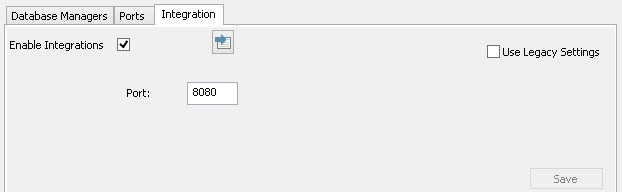 Alternatively, the Integration Server and Plug-ins can be configured via the WebConfig interface. See the WebConfig - Integration Plug-ins topic for details. |
|
|
Configuring Integration Data Providers |
Each Data Provider (or Plug-in) is defined both as a series of settings defined in the PCS's configuration database and as settings within a configuration file. Again, the 'Integration' tab in the Cloud Configuration Client allows the definition and maintenance of Integration Data Provider details without the need for you to manually manipulate these settings. |
Add/Edit Data Provider |
|
Configuring Models for External Data Providers |
In order for users of an Enterprise Architect repository to connect to a given External Data Provider, a 'binding' between the Enterprise Architect repository and the External Data Provider must be configured. This is performed by using the PCS's configuration client, on the main Integration tab, select a given Data Provider and then check one or more repositories that should be bound to the Integration. |
|
|
Configuring the Firewall |
In an effort to minimize Firewall rules needed to configure the Pro Cloud Server and its features, PCS version 4.1 now routes all requests for the Integration server (SBPI.exe) via the normal PCS ports, therefore if you are using PCS 4.1 or later there are no additional Firewall rules needed other than the ones for Enterprise Architect client to communicate to the Pro Cloud Server. For versions 3 and 4 of the PCS, the Integration server (SBPI.exe) typically must be granted access through any local firewall so that Enterprise Architect clients can connect to it. The Pro Cloud Server installer will automatically create a Firewall exception that allows any incoming requests to be passed through to SBPI.exe; however, the default settings should be reviewed and adjusted to suit your environment. |
Special Notes
Using SSL at the Integration Server or Provider Level
If you choose to implement the HTTPS protocol at either the Integration Server level or Integration Provider level, the Integration Executables (*SBPI.EXE) will require a 'server.pem' file in the same folder as themselves; therefore, if using the default installation path this would mean 'server.pem' should be placed into the C:\Program Files\Sparx Systems\Pro Cloud Server\SBPI\ folder.
See the section SSL Certificates in the Add a Port Definition Help topic and the Self-Signed SSL Certificates Help topic for more information on how to create a valid 'server.pem' file.
The Integration Plug-in for Enterprise Architect Requirements:
- The BaseURL as the model's DB Alias
- The defined model configured as 'Enabled' and 'Enable Pro Features (OSLC, WebEA and Integration)' in the Pro Cloud Server